
Connect Claude or ChatGPT
Add Pinecall to Claude or ChatGPT as a connector by its address, approve it once, and ask about your agents and calls in a chat.
Pinecall's MCP server is hosted at one address:
https://mcp.pinecall.io/mcpAdd that address to Claude or ChatGPT as a connector, approve it once on a Pinecall page, and the assistant works in your org: it reads your calls, talks to an agent, changes its voice, runs a simulation, watches a live call. Nothing is installed and no key is copied. Claude Code, Cursor, VS Code, Codex and Gemini CLI take the same address, further down.
What is a connector?#
A connector is a server an assistant calls for tools. You add it once in the assistant's settings; then, in any conversation, the assistant may call its tools, and asks you first unless you told it not to. The assistant signs in to Pinecall as you, through a page of Pinecall's own, so it acts with your role in your org and never sees your password.
The connector added here is yours alone. Listing Pinecall in Claude's or ChatGPT's public directory is a separate review, and nothing on this page needs it.
Claude#
On claude.ai, in Claude Desktop and in the phone app, on every plan.
Open your connectors#
In claude.ai, open Settings and then Customize. Under Connectors, choose the Yours tab, then + Add and Add custom connector.
Name it, and give it the address#
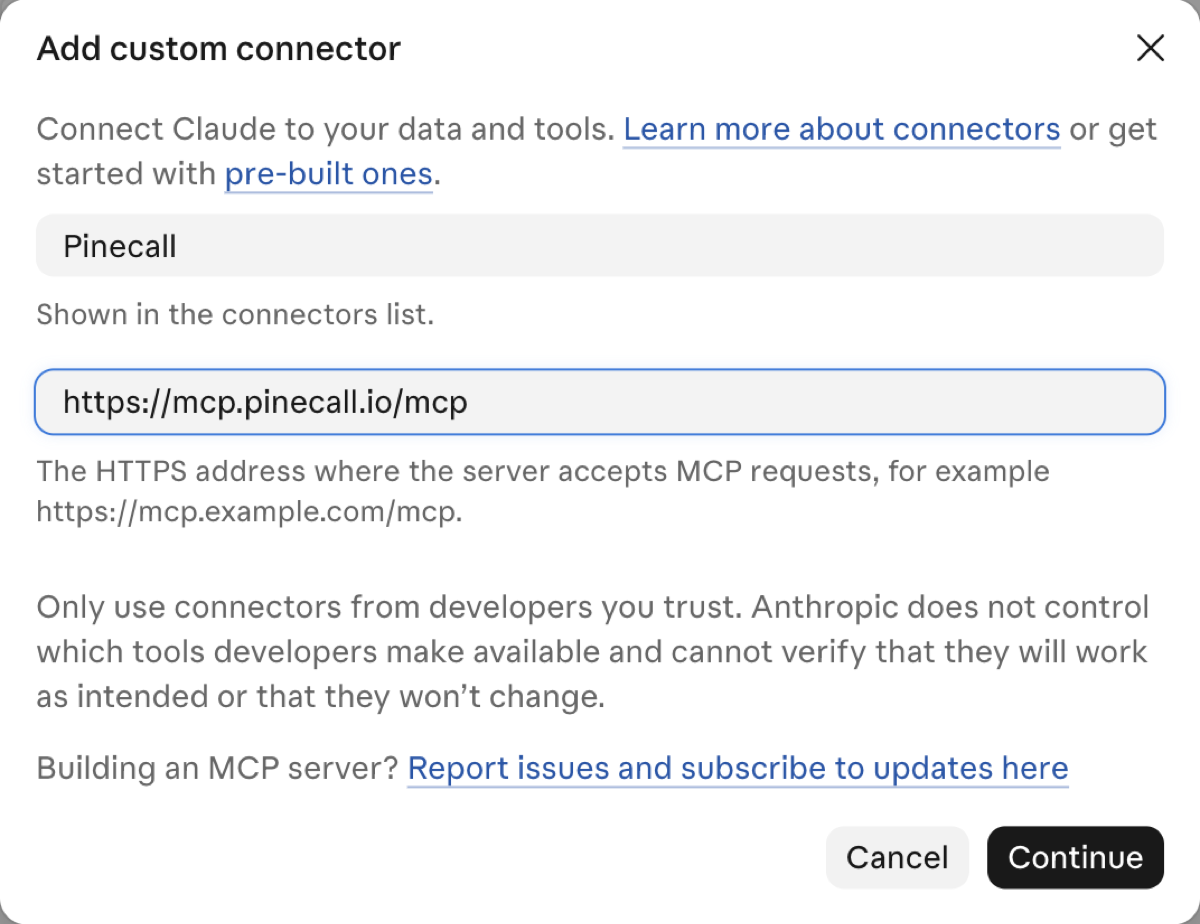
Write Pinecall as the name and https://mcp.pinecall.io/mcp as the MCP server URL, then click
Continue.
Keep what Claude detected#
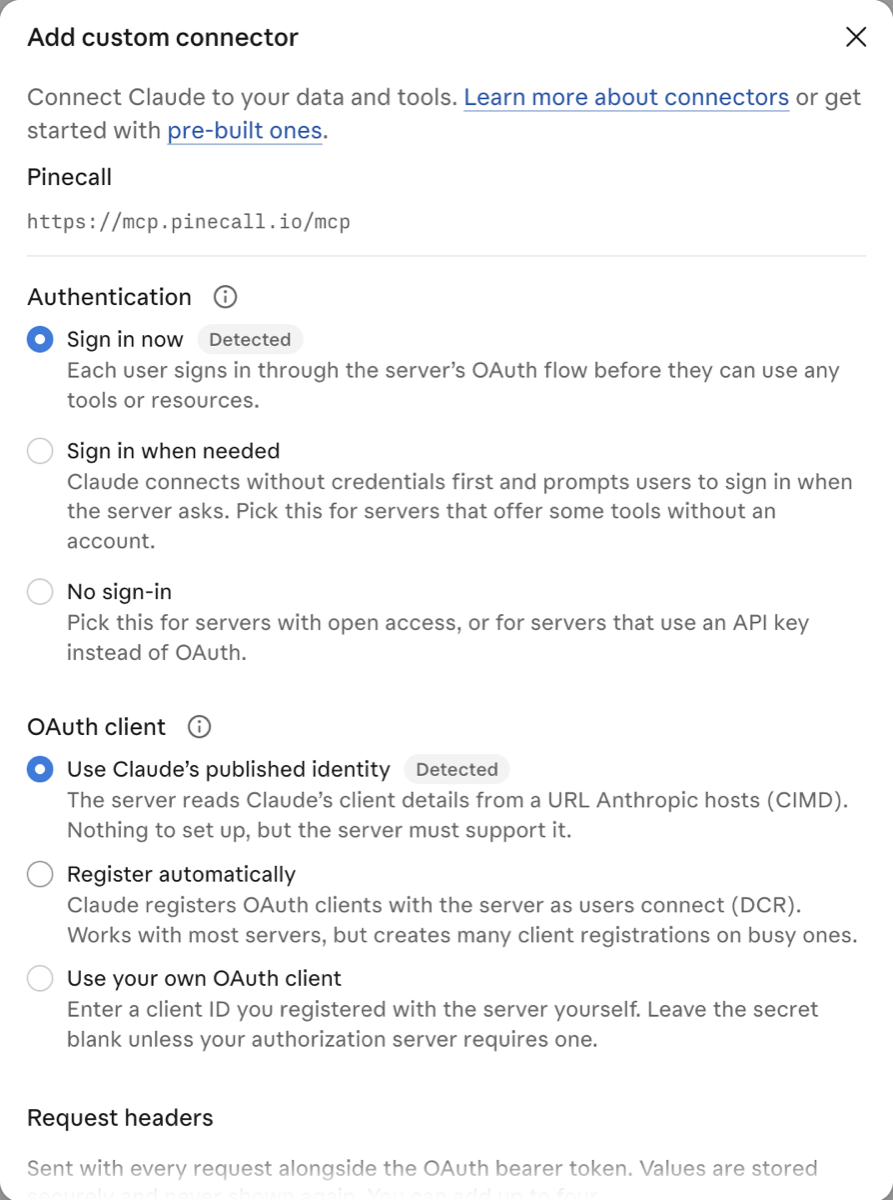
Claude reads from the server how it signs in: Sign in now and Use Claude's published identity, both marked Detected. Change nothing, scroll down and click Add.
Connect, and approve on Pinecall's page#
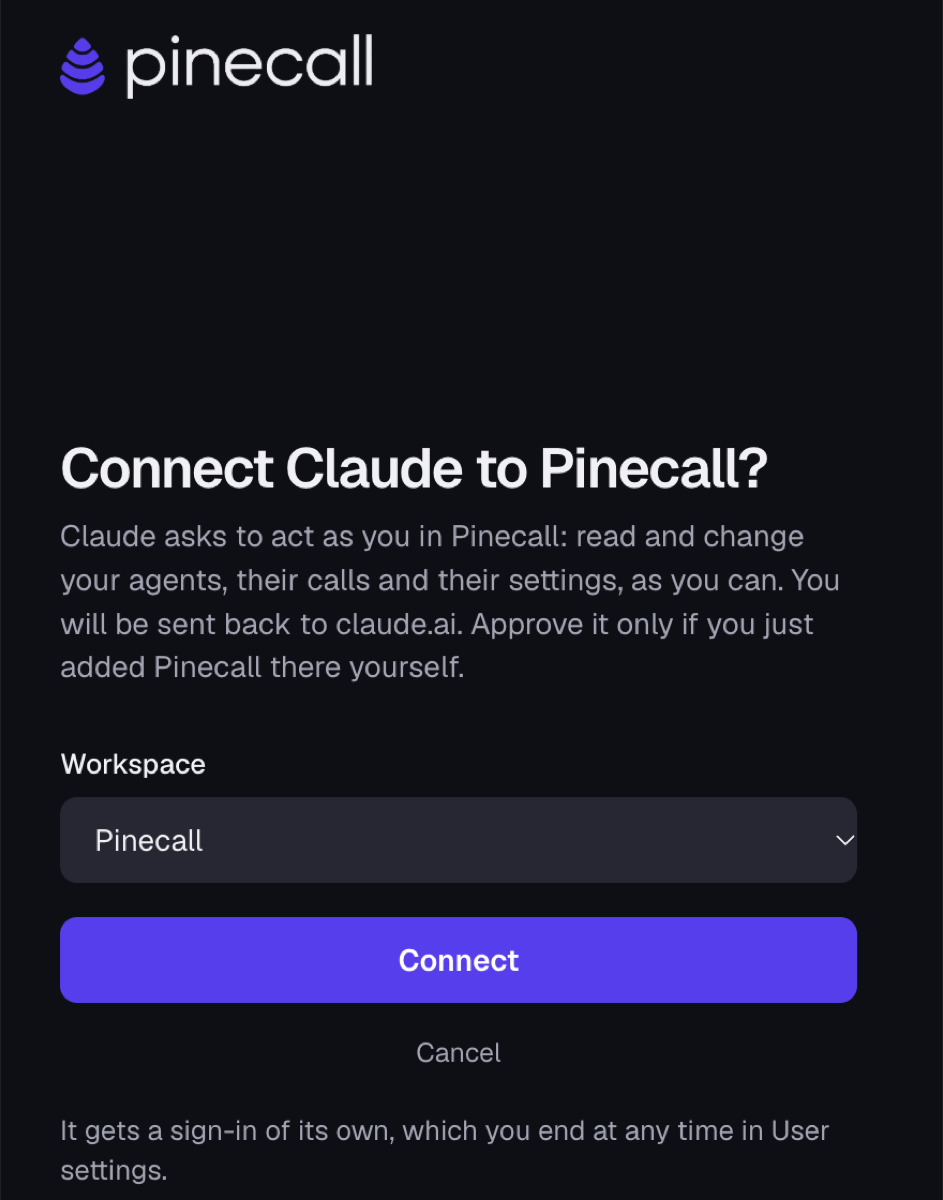
Click Connect. A Pinecall page opens, signed in if your browser already is, or asking you to sign in first. It names Claude, the workspace it will act in and where it sends you back. Choose the workspace if you belong to several, and click Connect.
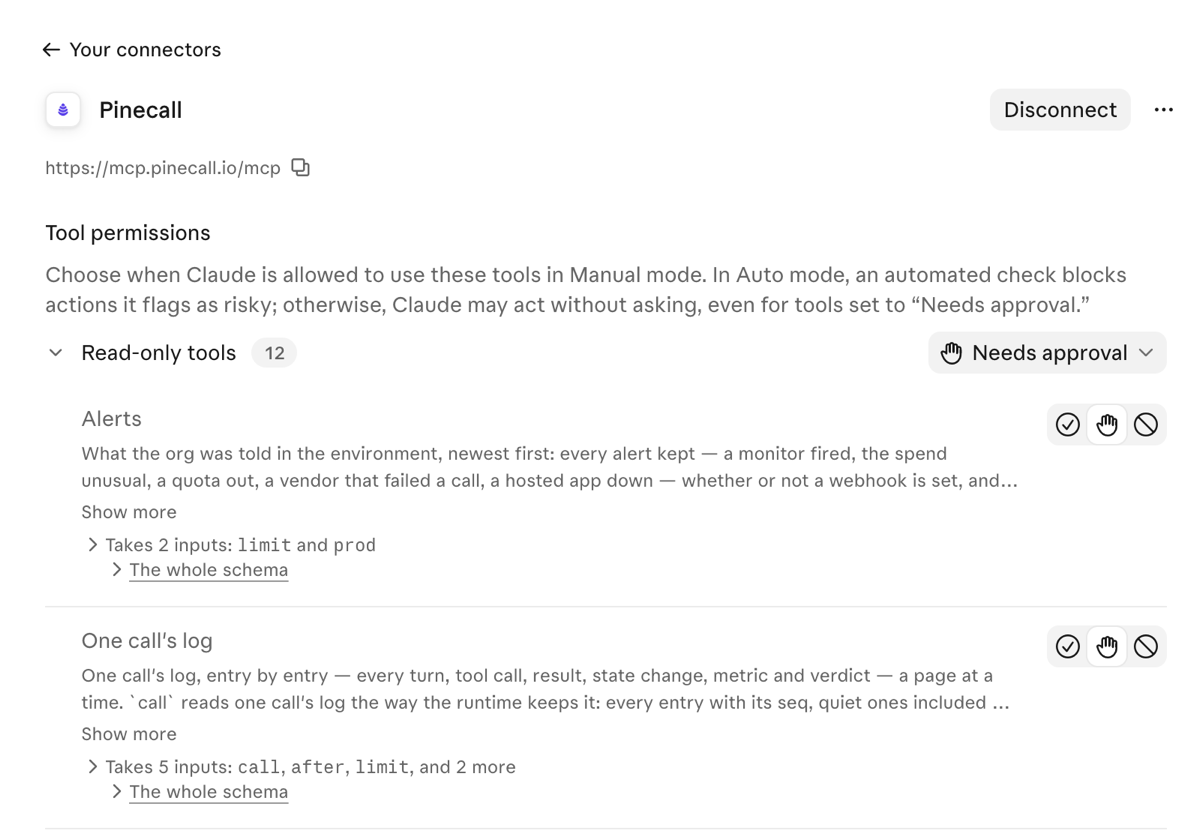
Back in Claude: Connected to Pinecall. The connector's page lists its tools, the read-only ones apart, each one set to Needs approval until you choose otherwise.
Use it in a chat#
Ask for something Pinecall knows: "Which of my agents are running, and how did their last calls go?" Claude asks before each tool the first time; Allow once runs that call, Always allow stops asking for that tool.
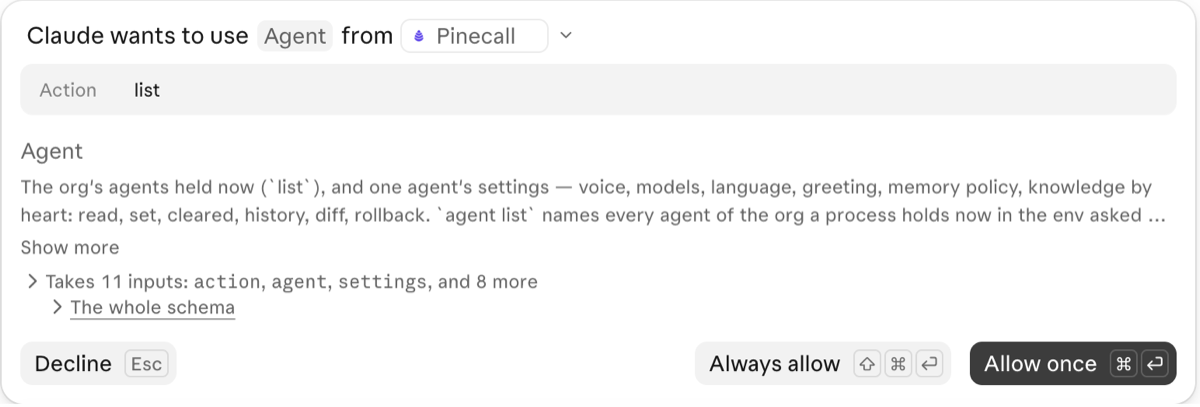
If a chat does not use it, the + button at the lower left of the chat lists your connectors: switch Pinecall on there.
On a Team or Enterprise plan an owner adds it once for everybody, in Organization settings > Connectors; each member then finds it among their connectors and clicks Connect to sign in as themselves.
ChatGPT#
On chatgpt.com, the free plan included. In a workspace, its admin decides whether members may add a custom MCP server.
Open Plugins, and add a custom MCP server#
Open chatgpt.com/plugins. Click Add, at the top right, and choose Add custom MCP server.
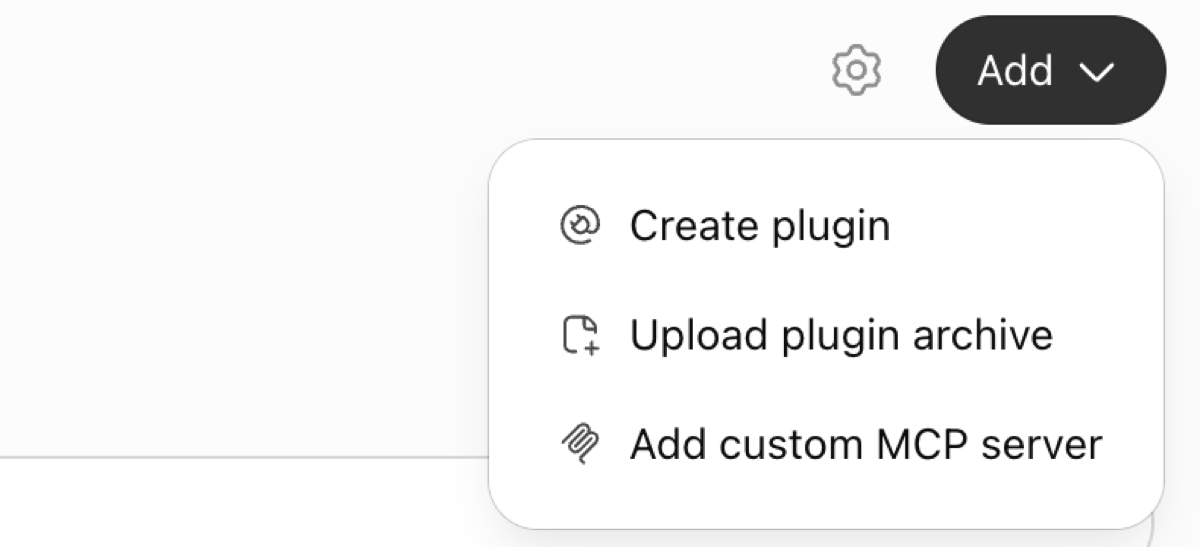
Fill in the form#
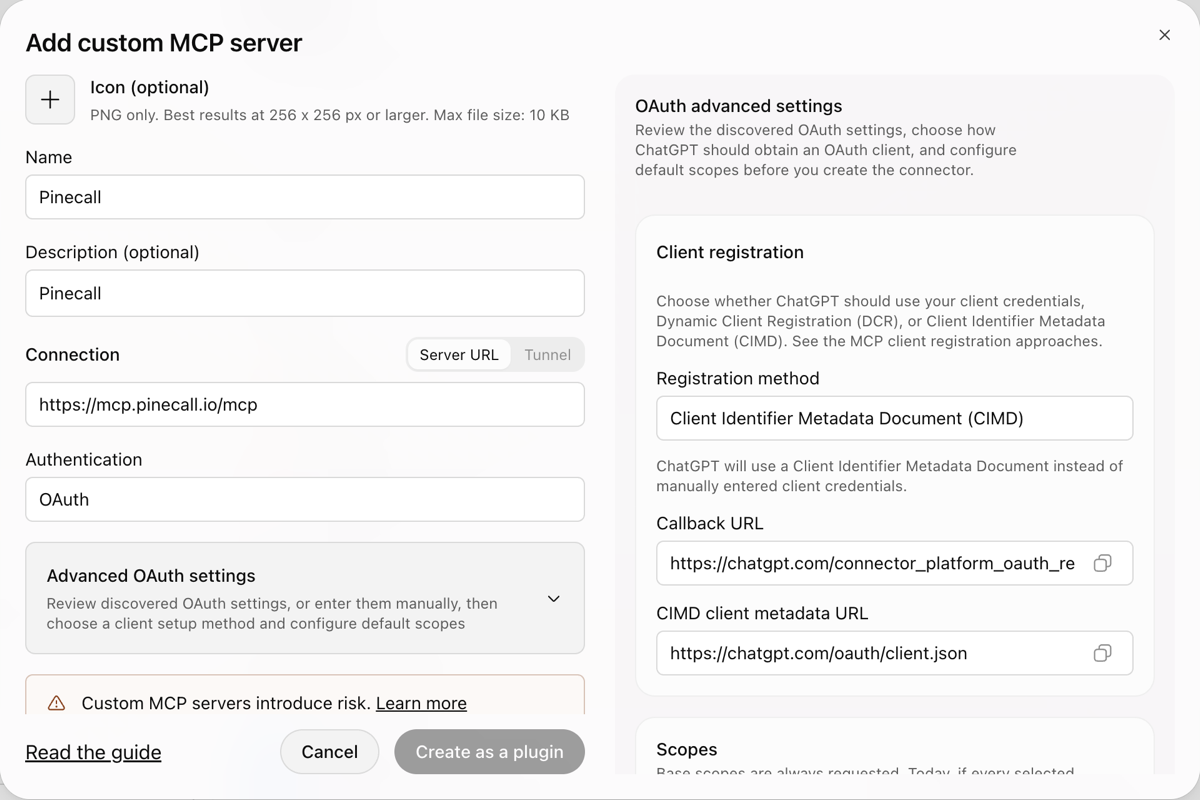
Write Pinecall as the name (a description is optional), keep Server URL under Connection and
enter https://mcp.pinecall.io/mcp, and keep OAuth as the authentication. ChatGPT finds the
rest from the server itself: open Advanced OAuth settings and it shows it registers with its own
client document. Change nothing there.
Create it#
Scroll down, tick I understand and want to continue under the warning, and click Create as a plugin.
Connect, and approve on Pinecall's page#
ChatGPT asks to connect Pinecall. Click Connect Pinecall: the same Pinecall page as for Claude opens, naming ChatGPT and sending you back to chatgpt.com. Choose the workspace, and click Connect.
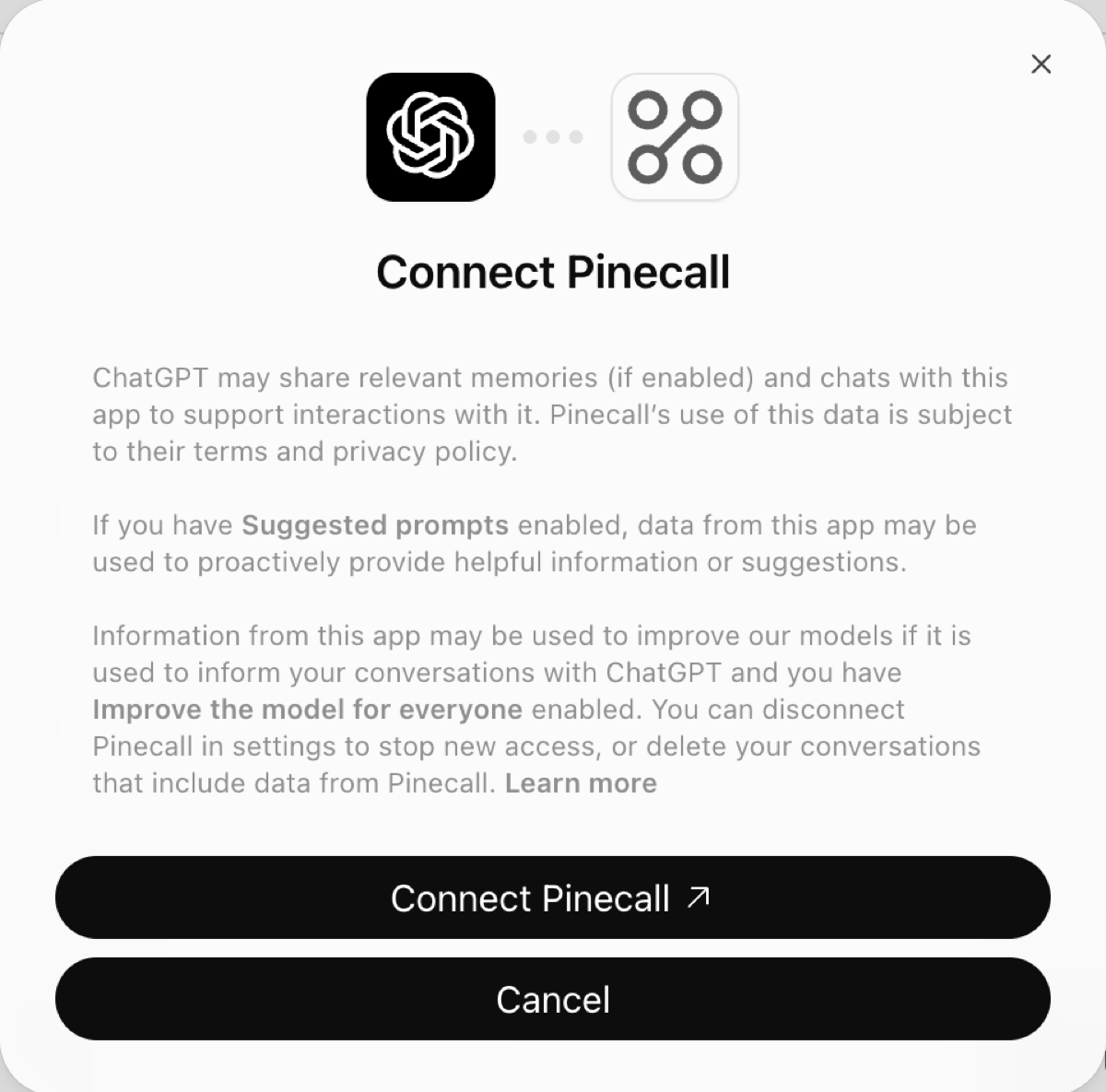
Back in ChatGPT, Pinecall is under Installed on the Plugins page.
Use it in a chat#
Open Pinecall's plugin page and click Try in chat, or type @ in any conversation and pick Pinecall, then ask.
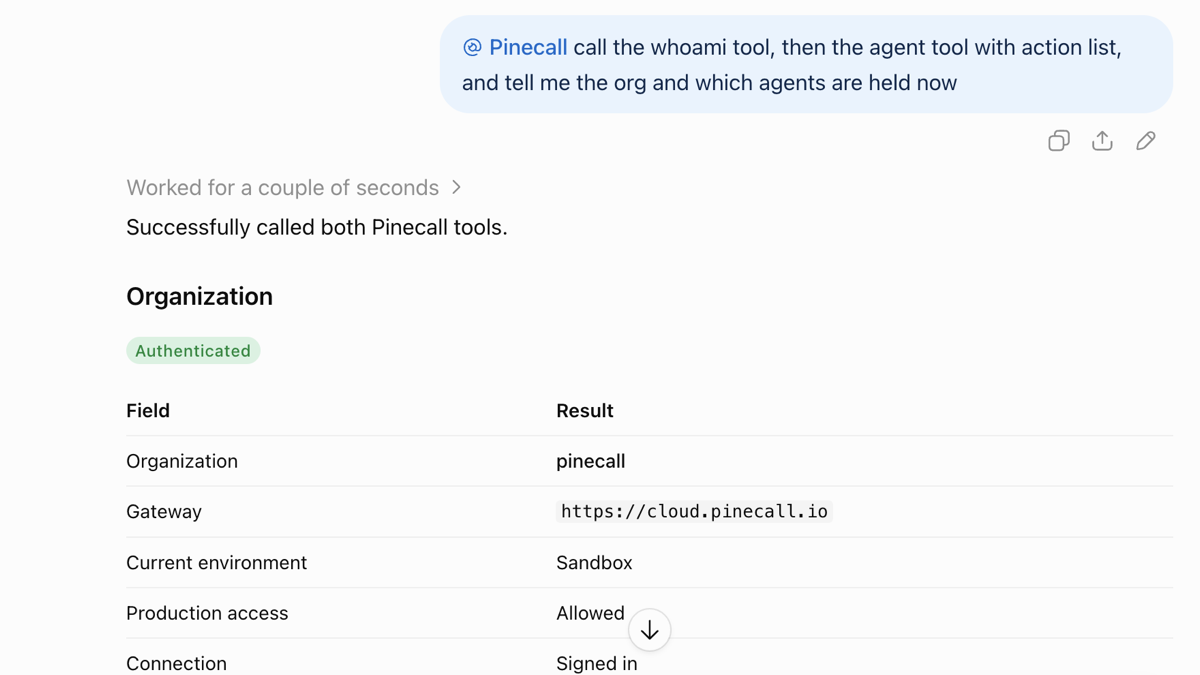
What the connection can do#
The hosted server has 35 tools: the agents your org runs, their settings, their calls, tests and cases, simulations, a live call, numbers and the docs. Each says whether it only reads or may change something, and the assistant shows that: Claude groups the read-only ones apart, and asks before the others. The destructive ones — placing a call, buying a number, ending a live call, overwriting settings, removing a judge or a persona — are the ones to keep on Needs approval.
It has no folder of yours. What needs your project's files — writing an agent's class, holding it
while you write it, its golden files, uploading a project — is the MCP server on your
machine, which an assistant on your computer runs (pinecall mcp install). A tool
asked for one of those answers in a sentence that says so.
Every tool, its parameters and what it answers: the tools, stage by stage.
What you approved#
The Pinecall page at https://cloud.pinecall.io/connect gives the assistant a sign-in of its own:
a key of yours, labelled with the assistant's name.
- It acts as you. It opens what your role opens, in the sandbox, and in production when a tool
is asked with
prod: trueand your org lets you act there. - It is listed with your sign-ins. The console's User settings lists it under Where you are signed in, beside your browsers and terminals. Ending it there cuts the assistant off at once.
- Disconnecting in the assistant stops the assistant, but Claude's Disconnect leaves the sign-in itself in that list. End it in User settings too when you are done with it.
- It ends by itself thirty days after the assistant last used it. The assistant then asks you to connect again.
- No key crosses the model. No tool takes a vendor's key or a secret, and no answer carries a Pinecall key.
Claude Code#
claude mcp add --transport http pinecall https://mcp.pinecall.io/mcpThen, inside Claude Code, type /mcp, choose pinecall and follow the browser. claude mcp login pinecall
does the same from a shell. Add --scope user to have it in every project, or --scope project to
write it into the repository's .mcp.json for your team:
{
  "mcpServers": {
    "pinecall": { "type": "http", "url": "https://mcp.pinecall.io/mcp" }
  }
}Cursor#
In ~/.cursor/mcp.json for every project, or .cursor/mcp.json in one:
{
  "mcpServers": {
    "pinecall": { "url": "https://mcp.pinecall.io/mcp" }
  }
}
Cursor shows the server as needing a sign-in: click it, and approve in the browser.
VS Code#
In .vscode/mcp.json:
{
  "servers": {
    "pinecall": { "type": "http", "url": "https://mcp.pinecall.io/mcp" }
  }
}
Or from the Command Palette: MCP: Add Server, then HTTP, then the address. VS Code asks you to sign in the first time the server starts.
Codex#
codex mcp add pinecall --url https://mcp.pinecall.io/mcp
codex mcp login pinecall
On a machine with no browser, codex mcp login pinecall --no-browser prints the address to open
and takes the redirect back as text. The same server in ~/.codex/config.toml:
[mcp_servers.pinecall]
url = "https://mcp.pinecall.io/mcp"
Gemini CLI#
gemini mcp add --transport http pinecall https://mcp.pinecall.io/mcpThen /mcp auth pinecall inside Gemini CLI. The same server in ~/.gemini/settings.json:
{
  "mcpServers": {
    "pinecall": { "httpUrl": "https://mcp.pinecall.io/mcp" }
  }
}
Any other assistant#
Anything that speaks MCP's Streamable HTTP takes the address as it is, and finds the sign-in by
itself. An assistant that can only launch a command reaches it through mcp-remote:
{
  "mcpServers": {
    "pinecall": { "command": "npx", "args": ["-y", "mcp-remote", "https://mcp.pinecall.io/mcp"] }
  }
}
With a key, and no browser#
A script, a CI job or an agent of your own has nobody to click. The hosted server takes a Pinecall key as a bearer too: a server's token from the console's API keys screen, which acts in the one environment it was made for.
claude mcp add --transport http pinecall https://mcp.pinecall.io/mcp \
--header "Authorization: Bearer $PINECALL_KEY"# ~/.codex/config.toml
[mcp_servers.pinecall]
url = "https://mcp.pinecall.io/mcp"
bearer_token_env_var = "PINECALL_KEY"Keep the key in the environment or in the assistant's own secret store, never in a file a repository tracks.
On a runtime of your own#
Every gateway is an OAuth authorization server for its own people: it answers
/.well-known/oauth-authorization-server, registers an assistant, and serves the page a person
approves it on. The hosted server is a small service beside it, released from this repository's
chart at a name you choose. Running it.
Under it#
For whoever writes an MCP client, or wonders what the assistant does.
| transport | Streamable HTTP at /mcp: each request whole, answered as JSON, no stream and no session id |
| the sign-in | OAuth 2.1, the authorization code grant with PKCE (S256), a public client |
| found by | 401 with WWW-Authenticate: Bearer resource_metadata=…, then https://mcp.pinecall.io/.well-known/oauth-protected-resource (RFC 9728), then https://cloud.pinecall.io/.well-known/oauth-authorization-server (RFC 8414) |
| the client | a Client ID Metadata Document (its client_id is the document's https address: Claude's and ChatGPT's both are), or registered at /v1/oauth/register (RFC 7591) |
| the token | a Pinecall key of the person's, as a bearer. No refresh token: the key is kept while it is used |
| the tools | each with a title and readOnlyHint or destructiveHint |
| revoked by | POST https://cloud.pinecall.io/v1/oauth/revoke (RFC 7009), or the person, in the console |
The gateway's side, endpoint by endpoint: People.