

The flow#
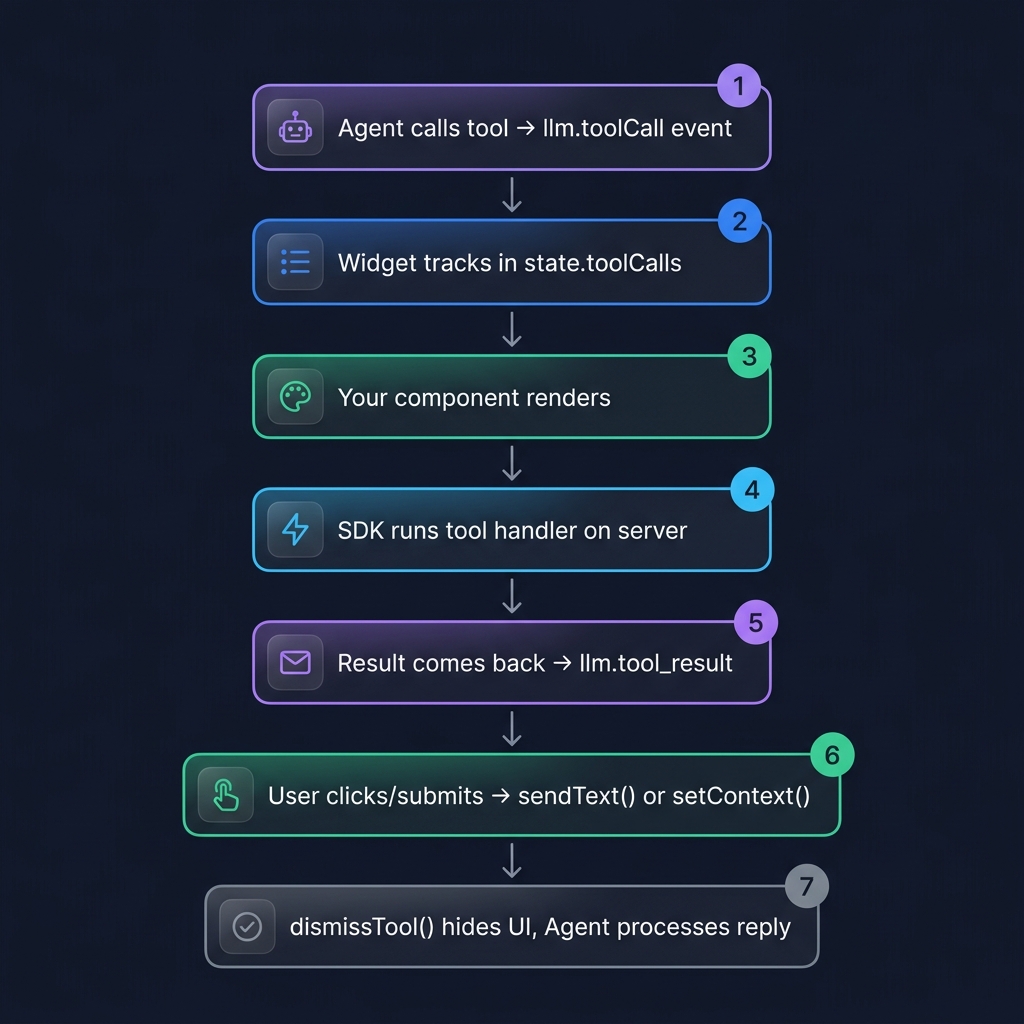
Enabling tool tracking#
Tell the widget which tool names to track via the trackedTools prop. Untracked tools are handled silently by the agent — only tracked ones expose their state to the UI.
<VoiceWidget
  agent="booking-demo"
  trackedTools={["getAvailableSlots", "showContactForm", "fillField"]}
>
  <ToolPanel />
</VoiceWidget>
Children of <VoiceWidget> (like <ToolPanel />) can read the tool state through the useVoice() context hook.
ToolUI shape#
Each tracked tool call is stored in state.toolCalls as:
interface ToolUI {
  toolCallId: string;                    // correlation ID — pass to dismissTool()
  name: string;                          // tool function name
  arguments: Record<string, unknown>;    // parsed LLM arguments
  result?: unknown;                      // populated when the tool result arrives
  timestamp: number;
}
result is undefined between the call and the result — render a loading state if needed.
useVoice() — the context hook#
Reads from <VoiceWidget> context. Use it in any component that lives inside the widget.
import { useVoice } from "@pinecall/web";

function SlotPicker() {
  const { toolCalls, sendText, dismissTool } = useVoice();

  const tool = toolCalls.find(
    (tc) => tc.name === "getAvailableSlots" && tc.result !== undefined,
  );
  if (!tool) return null;

  return (
    <div className="slot-picker">
      {tool.result.slots.map((slot: string) => (
        <button
          key={slot}
          onClick={() => {
            sendText(`I'd like the ${slot} slot`);
            dismissTool(tool.toolCallId);
          }}
        >
          {slot}
        </button>
      ))}
    </div>
  );
}
What useVoice() exposes#
| Field | Type | What it does |
|---|---|---|
toolCalls | ToolUI[] | Active tracked tool calls |
messages | TranscriptMessage[] | Full transcript |
status | SessionStatus | Connection status |
phase | CallPhase | Current phase |
sendText | (text: string) => void | Inject text as if the user spoke it |
setContext | (key: string, value: string | null) => void | Inject keyed context into the LLM system prompt |
dismissTool | (toolCallId: string) => void | Remove a tool from state (hides the UI) |
useVoice()vsuseVoiceSession().useVoice()reads from the widget's context — only works inside<VoiceWidget>children.useVoiceSession()creates its own standalone session. UseuseVoice()when building tool renderers.
The three primitives#
sendText(text)#
Inject text into the conversation as if the user spoke it. It routes through the server's LLM pipeline so the agent processes it normally.
// User clicks a slot button
sendText("I'd like to book the 10:00 AM slot");

// User submits a form
sendText("Form submitted: name=John, email=john@example.com, phone=+1555000");
Use this for click-based interactions where you want the agent to react conversationally.
setContext(key, value)#
Inject dynamic context into the agent's LLM system prompt. Keyed — setting the same key replaces its value. Pass null to clear.
This is the magic for syncing UI state (form inputs, selections, page content) into the agent's awareness:
// Sync form state on every keystroke
useEffect(() => {
  setContext("contact_form", JSON.stringify({
    name: formData.name || "(empty)",
    email: formData.email || "(empty)",
    phone: formData.phone || "(empty)",
  }));
}, [formData, setContext]);

// Clear when done
setContext("contact_form", null);
On the server, this appears in the LLM's system prompt as:
## UI Context
### contact_form
{"name":"John","email":"john@example.com","phone":"(empty)"}
The agent can now reason about UI state without you having to explicitly tell it.
dismissTool(toolCallId)#
Remove a tool from state.toolCalls. Hides the rendered UI. Call this after the user interacts (selects a slot, submits a form, etc.).
dismissTool(tool.toolCallId);Full example — booking with auto-fill#
This shows the full pattern: slot picker, contact form, agent-driven auto-fill, and live context sync.
Server-side agent#
import { tool } from "@pinecall/sdk";
import { z } from "zod";

const getAvailableSlots = tool({
  name: "getAvailableSlots",
  description: "Get available slots for a date.",
  schema: z.object({ date: z.string() }),
  execute: async ({ date }) => ({
    slots: ["9:00 AM", "10:00 AM", "2:00 PM", "4:00 PM"],
  }),
});

const showContactForm = tool({
  name: "showContactForm",
  description: "Show a contact form on screen.",
  schema: z.object({}),
  execute: async () => ({ shown: true }),
});

const fillField = tool({
  name: "fillField",
  description: "Auto-fill a form field with a value extracted from the conversation.",
  schema: z.object({
    field: z.enum(["name", "email", "phone"]),
    value: z.string(),
  }),
  execute: async ({ field, value }) => ({ field, value }),
});

const confirmBooking = tool({
  name: "confirmBooking",
  description: "Confirm the booking.",
  schema: z.object({ date: z.string(), time: z.string(), clientName: z.string() }),
  execute: async ({ date, time, clientName }) => ({
    confirmationId: "BK-" + Math.random().toString(36).slice(2, 8),
  }),
});

const agent = pc.agent("booking-demo", {
  prompt: `You are a booking assistant.
- Call getAvailableSlots when the user wants to book.
- After they pick a slot, call showContactForm.
- If they say their name/email/phone, call fillField to auto-fill.
- The form state is in "## UI Context" — you can see what they've typed.
- When the form is submitted, call confirmBooking.`,
  llm: "openai/gpt-5.4-nano",
  voice: "elevenlabs/sarah",
  tools: [getAvailableSlots, showContactForm, fillField, confirmBooking],
  greeting: "Hi! Want to book an appointment?",
});
Browser — contact form with auto-fill#
import { useState, useEffect } from "react";
import { VoiceWidget, useVoice } from "@pinecall/web";

function ContactForm({ tool }) {
  const { sendText, dismissTool, setContext, toolCalls } = useVoice();
  const [form, setForm] = useState({ name: "", email: "", phone: "" });

  // Agent calls fillField → auto-fill the form
  const fillTool = toolCalls.find((tc) => tc.name === "fillField" && tc.result);
  useEffect(() => {
    if (fillTool?.result) {
      const { field, value } = fillTool.result as { field: string; value: string };
      setForm((prev) => ({ ...prev, [field]: value }));
      dismissTool(fillTool.toolCallId);
    }
  }, [fillTool, dismissTool]);

  // Sync form state → LLM system prompt
  useEffect(() => {
    setContext("contact_form", JSON.stringify(form));
  }, [form, setContext]);

  const submit = (e: React.FormEvent) => {
    e.preventDefault();
    sendText(`Form submitted: ${JSON.stringify(form)}`);
    setContext("contact_form", null);
    dismissTool(tool.toolCallId);
  };

  return (
    <form onSubmit={submit}>
      <input
        placeholder="Name"
        value={form.name}
        onChange={(e) => setForm((p) => ({ ...p, name: e.target.value }))}
      />
      <input
        placeholder="Email"
        value={form.email}
        onChange={(e) => setForm((p) => ({ ...p, email: e.target.value }))}
      />
      <input
        placeholder="Phone"
        value={form.phone}
        onChange={(e) => setForm((p) => ({ ...p, phone: e.target.value }))}
      />
      <button type="submit">Confirm</button>
    </form>
  );
}

function SlotPicker({ tool }) {
  const { sendText, dismissTool } = useVoice();
  return (
    <div>
      {(tool.result as any).slots.map((slot: string) => (
        <button
          key={slot}
          onClick={() => {
            sendText(`I'd like the ${slot} slot`);
            dismissTool(tool.toolCallId);
          }}
        >
          {slot}
        </button>
      ))}
    </div>
  );
}

function ToolPanel() {
  const { toolCalls } = useVoice();
  return (
    <>
      {toolCalls.map((tool) => {
        if (tool.name === "getAvailableSlots" && tool.result) {
          return <SlotPicker key={tool.toolCallId} tool={tool} />;
        }
        if (tool.name === "showContactForm" && tool.result) {
          return <ContactForm key={tool.toolCallId} tool={tool} />;
        }
        return null;
      })}
    </>
  );
}

export default function App() {
  return (
    <VoiceWidget
      agent="booking-demo"
      trackedTools={["getAvailableSlots", "showContactForm", "fillField", "confirmBooking"]}
    >
      <ToolPanel />
    </VoiceWidget>
  );
}
Alternative: tools prop (render functions)#
If you don't need the flexibility of trackedTools + useVoice(), use the tools prop for a simpler inline approach. Each tool name maps to a render function that receives the result:
<VoiceWidget
  agent="booking-demo"
  tools={{
    getAvailableSlots: (result, { respond, dismiss }) => (
      <div className="slot-picker">
        {result.slots.map((slot: string) => (
          <button
            key={slot}
            onClick={() => {
              respond(`I'd like the ${slot} slot`);
              dismiss();
            }}
          >
            {slot}
          </button>
        ))}
      </div>
    ),
    confirmBooking: (result, { dismiss }) => (
      <div className="confirmation">
        <p>✅ Booked for {result.time}</p>
        <button onClick={dismiss}>Done</button>
      </div>
    ),
  }}
/>
Render function signature#
type ToolRenderer = (
  result: any,               // parsed tool result
  context: ToolRenderContext, // { respond, dismiss }
  toolCall: ToolUI,           // full tool call metadata
) => React.ReactNode;| Parameter | Type | Description |
|---|---|---|
result | any | The parsed JSON result from your backend tool |
context.respond | (text: string) => void | Inject text as if the user spoke it |
context.dismiss | () => void | Remove the tool UI from the transcript |
toolCall | ToolUI | Full tool call metadata (name, arguments, ID) |
tools vs trackedTools — when to use which#
| Scenario | Use |
|---|---|
| Simple inline renderers | tools prop |
| Complex components needing React state | trackedTools + useVoice() |
| Multiple components sharing tool state | trackedTools + useVoice() |
Context injection via setContext | trackedTools + useVoice() |
Why this pattern is powerful#
What this enables is multimodal interaction:
- Voice for natural language — "I want to book an appointment for next Tuesday morning"
- UI for precise input — pick the exact slot, type your email, submit a form
- Sync via setContext — the agent always knows what's on screen
- sendText for confirmation — the user's UI action becomes part of the conversation
The agent doesn't need different code paths for "voice user" vs "GUI user" — it just sees a conversation with rich context.
What's next#
- Props reference —
tools,trackedTools,tokenProvider, and more useVoiceSessionhook — for non-tool custom UIs- Tools and functions guide — server-side tool definition